Last updated
In‑platform exercising lets employees and other option holders exercise their stock options directly inside Mantle, while founders and admins keep everything—from requests to payments to share issuances—tied to a clean cap table trail. This section is written to help both founders/admins and option holders understand what exercising is and how Mantle’s flow works end-to-end.
Exercising options 101
What it means to exercise
Exercising stock options means the holder chooses to buy shares at the option’s exercise (strike) price, according to the terms of the stock option plan and option agreement.
When options can be exercised
Only vested options are eligible. Unvested options are not yet earned and cannot be exercised.
Why this matters for founders
Exercised options turn into actual shares, changing ownership on the cap table.
Strike prices must be based on a valid 409A valuation to avoid tax issues.
The company may need to collect cash, withhold taxes, and issue share certificates.
Mantle’s in‑platform exercising is designed to automate as much of this workflow as possible while keeping you compliant and audit‑ready.
How in-platform exercising works in Mantle
At a high level, Mantle supports:
Employee/option holder flow
Request exercise, confirm details, and complete payment or other required steps in‑platform.
Admin/founder flow
Review and approve exercises, collect funds, ensure tax/withholding is handled, and automatically issue the resulting shares on the cap table.
The in-platform exercising workflow in Mantle is as follows:
Option holder initiates an exercise request from their Mantle portal.
Mantle checks vested quantity and calculates the total exercise cost.
Admin/founder reviews and confirms the exercise.
Payment is processed off‑platform or via your configured workflow.
Mantle converts the exercised options into shares and updates the cap table.
For admins: how to enable in-platform exercising
Enable in-platform exercising
From the left-hand sidebar, click Equity Plans.
Select the Equity Plan you'd like to enable in-platform exercising for.
Click Actions → Edit.
Click the toggle to enable Allow on-platform exercising of options.
Set up in-platform exercising
Attach all documents requiring signature that are associated with the exercise (I.e. Exercise notice, POA, Adoption Agreements)
Click Modify in the Approval Delegates section to add admin users as approval delegates.
Click Save.
Add relevant notes within the Notes section. This may include information like payment instructions.
Receiving Exercise Requests
Notification of New Request When a stakeholder submits an exercise request, designated exercise admins receive an email containing:
Stakeholder name
Option grant being exercised (e.g., "OP-123")
Number of options being exercised
Option grant issue date
Exercise admin contact information
Direct link to review the request
Accessing Pending Requests
Navigate to "Tasks" in the main menu
Select "Exercise Notices" or "Exercise Requests"
View list of all requests, filtered by status
Pending requests requiring action appear at the top
Reviewing Exercise Request Details
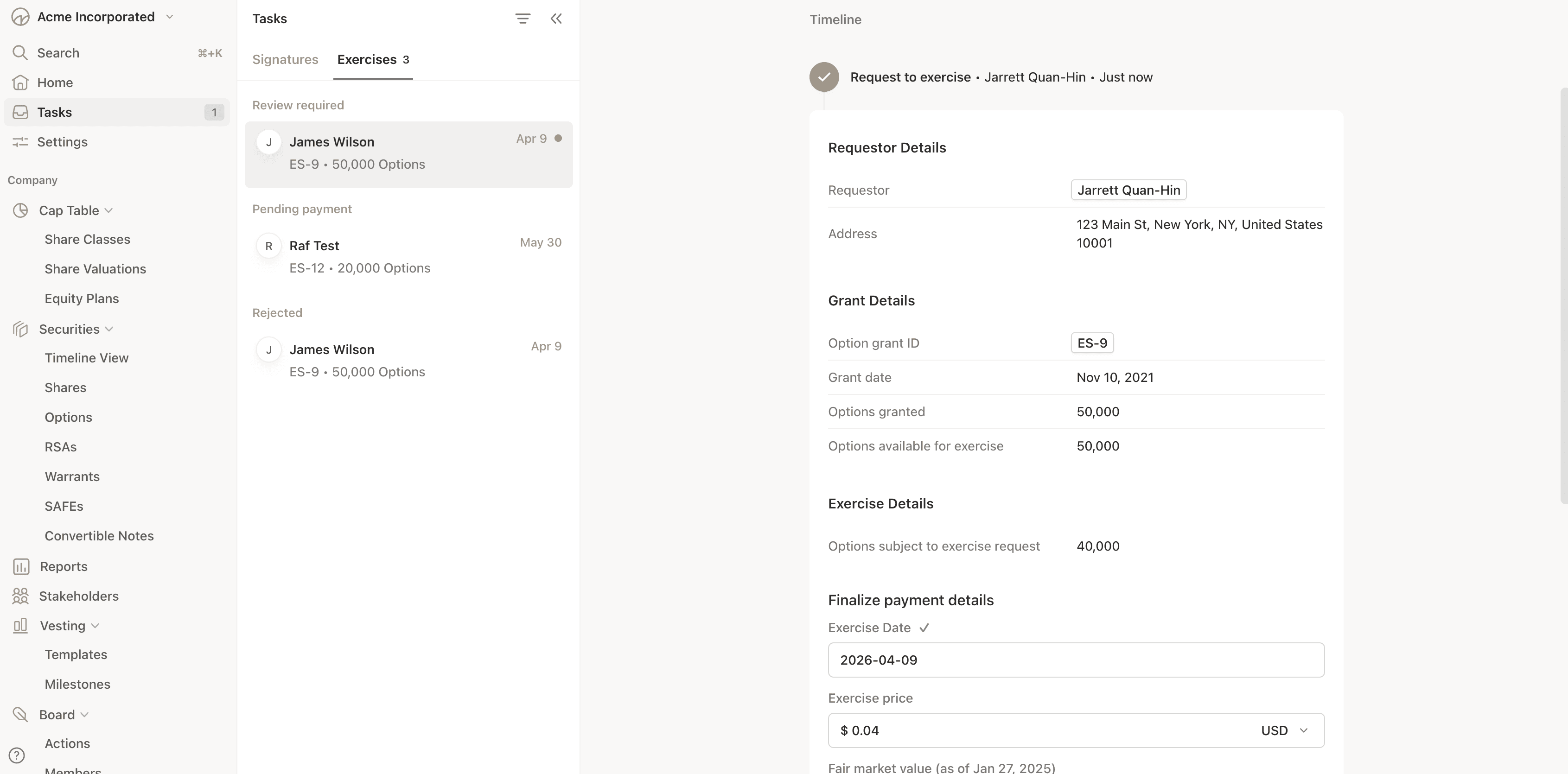
Request Overview When you open an exercise request, you'll see:
Stakeholder Information
Name and contact details
Option grant details
Grant issue date and vesting schedule
Available options to exercise
Exercise Request Details
Number of options requested
Requested exercise date
Stakeholder's location information
Any documents uploaded by stakeholder
Financial Calculations
Exercise price per option
Total exercise cost
Current fair market value (FMV) per share
Any tax withholding configured
Processing the Request
Step 1: Initial Review
Verify the stakeholder has sufficient vested options
Check that the exercise date is valid
Review location information for completeness
Examine any uploaded documents
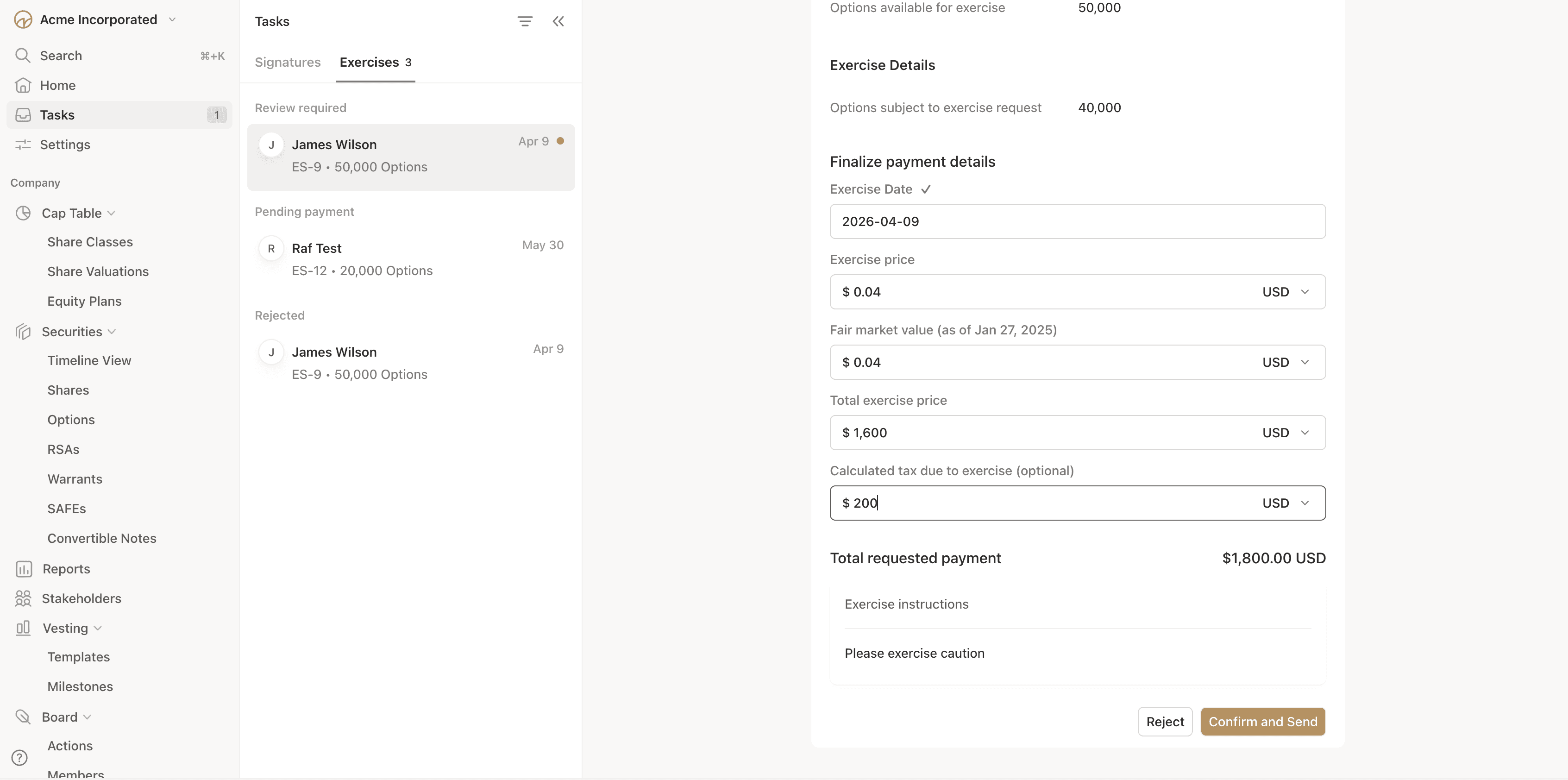
Step 2: Calculate Exercise Terms Click "Review" to access the review form where you specify:
Required Information
Exercise Date: Confirm or adjust the exercise date
Fair Market Value (FMV): Enter the current FMV per share at exercise date
Exercise Price: Confirm the exercise price (pre-filled from option grant)
Exercise Price Total: Automatically calculated
Optional Tax Information (if applicable)
Taxes Withheld: Dollar amount withheld for taxes
Tax Withholding Currency: Currency for tax amount
Options Withheld: Number of options withheld to cover taxes
Payment Details
Exercise Payment Type: Cash, cashless, or other payment method
Cash Paid: Amount paid by stakeholder
Cash Paid Currency: Currency of payment
Other Details
Notes: Internal notes about the exercise
Event Notes: Notes that may be visible in the audit trail
Documents: Upload any supporting documents
Step 3: Submit Review After completing the review form:
Click "Submit Review" to save your review
The status changes to "Reviewed"
If stakeholder has a primary email, they receive a payment request notification
Confirming Payment
When Payment Is Received
Access the reviewed exercise request
Click "Confirm Payment Received" or similar action
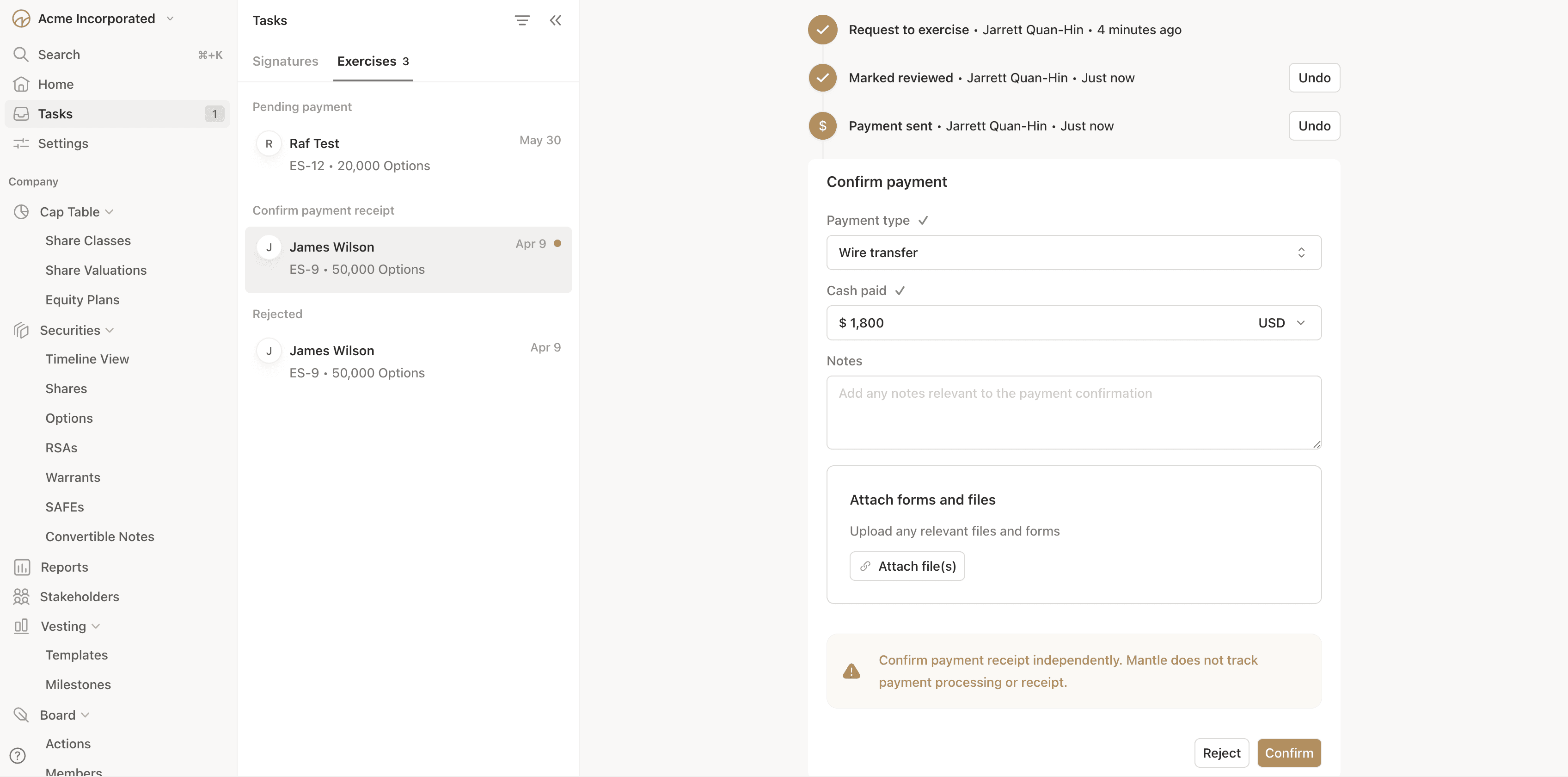
Enter payment confirmation details:
Exercise Payment Type: Wire, check, ACH, etc.
Cash Paid: Actual amount received
Cash Paid Currency: Currency code
Payment Confirmation Notes: Details about the payment
Upload payment receipts or confirmations
Click "Submit" to confirm
The status changes to "Payment Received"
If Stakeholder Marks Payment Sent When a stakeholder indicates they've sent payment:
You'll receive a notification
The status changes to "Payment Sent"
You can then confirm receipt as described above
Approving the Exercise
Final Approval Once payment is received and verified:
Click "Begin Review" or "Approve Exercise"
Review the approval summary showing:
New Certificates to Be Created
Share certificate ID that will be assigned
Number of shares to be issued
Stakeholder receiving the shares
Security Details
Exercise type (payment method)
Exercise date
Options exercised (quantity)
Exercise price per option
Total pre-tax cost
Tax amount withheld (if any)
Total post-tax cost
Cash paid amount
Certificate Information
Share class (e.g., Common Stock)
Vesting schedule (if inherited from options)
Any restrictions or conditions
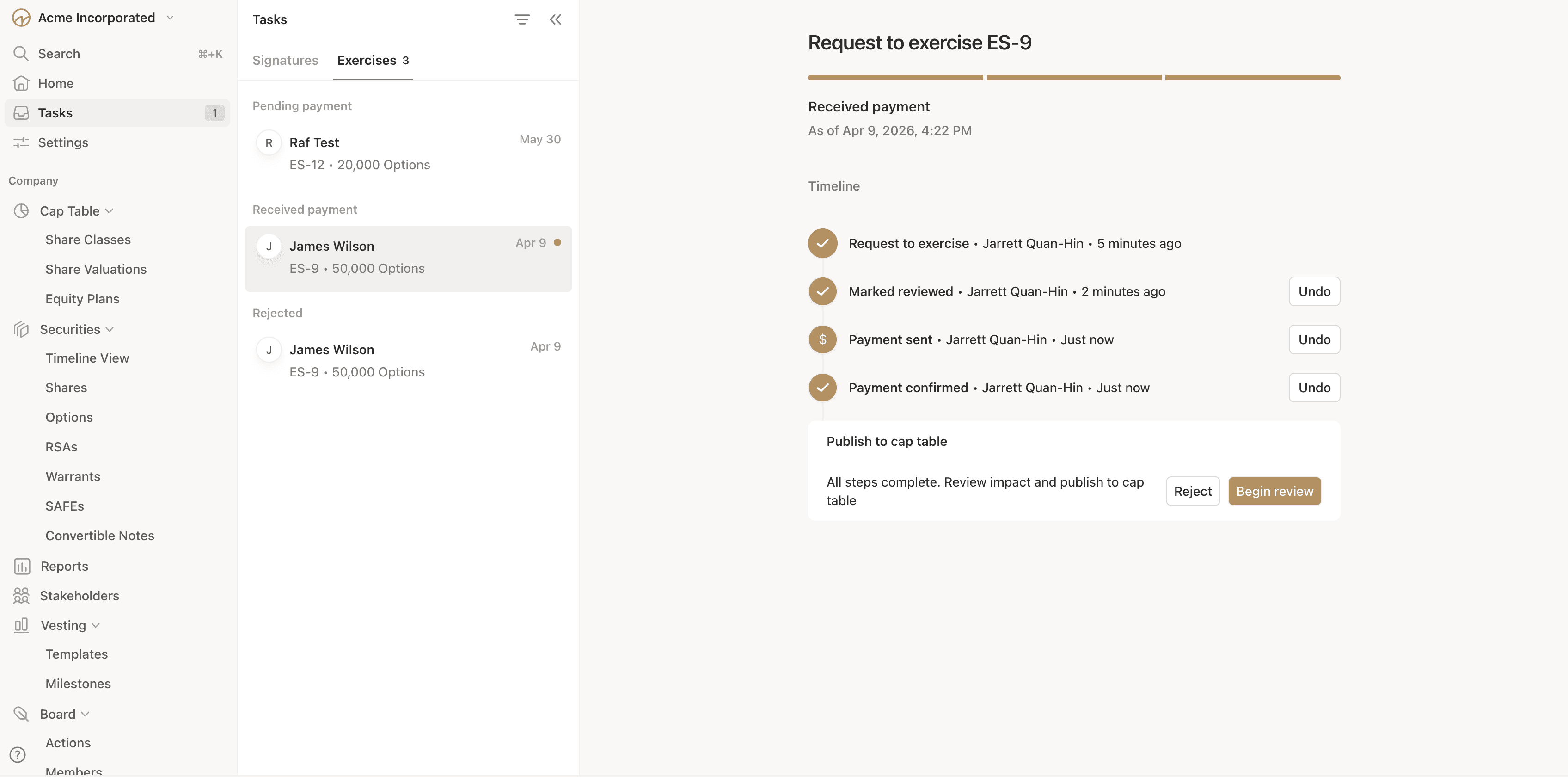
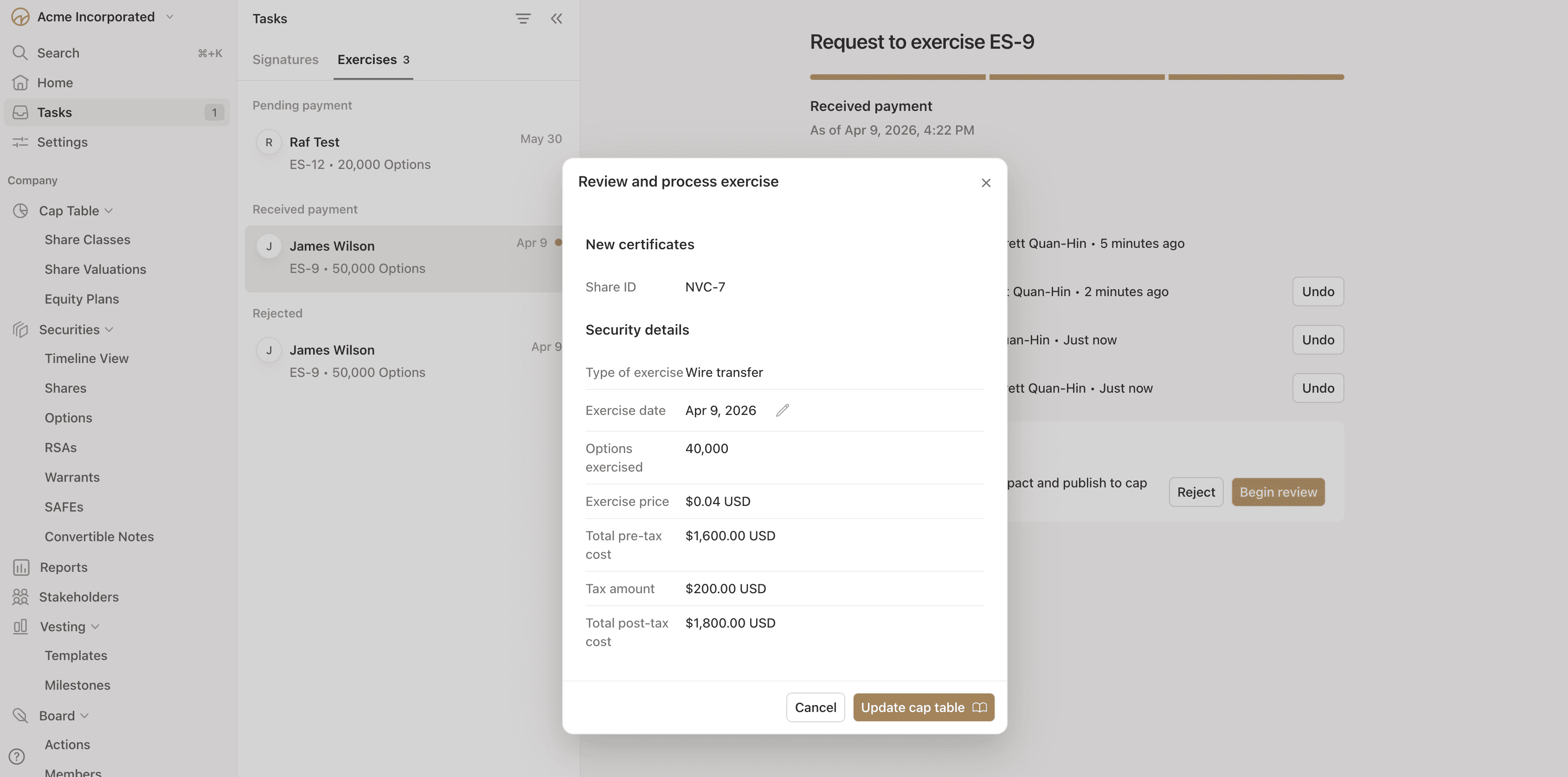
Verify all information is correct
The new share certificate ID is automatically generated
Click "Update Cap Table" to finalize
The exercise is processed immediately
What Happens Upon Approval The system automatically:
Creates a new share certificate for the stakeholder
Consumes (reduces) the exercised options from the original grant
Updates the cap table to reflect the new shares
Records the transaction in the audit trail
Sends an approval notification to the stakeholder
Marks the exercise notice as "Approved"
Rejecting an Exercise Request
When to Reject You may need to reject a request if:
Insufficient vested options available
Payment issues that cannot be resolved
Timing restrictions prevent the exercise
Compliance or legal concerns
Rejection Process
Open the exercise request
Click "Reject" or "Reject Exercise"
Provide rejection details:
Event Notes: Explanation for rejection (visible to stakeholder)
Internal Notes: Additional context for internal records
Upload any relevant documents
Click "Submit Rejection"
The stakeholder receives an email notification with:
Option grant name
Notification that the request was rejected
Link to view details
After Rejection
The exercise notice status becomes "Rejected"
This is a terminal status - the exercise cannot be reactivated
The stakeholder must create a new exercise request to try again
Sending Requests Back to Draft
Redrafting for Corrections If an exercise request needs changes but shouldn't be rejected:
Open the submitted exercise request
Click "Send Back to Draft" or similar option
Add event notes explaining what needs to be corrected
Click "Submit"
The stakeholder receives a notification
The status returns to "Drafted"
The stakeholder can edit and resubmit
This is useful when:
Minor information needs updating
Documents need to be added
Exercise date needs adjustment
Location information requires correction
Understanding Exercise Notice Statuses
Complete Status Flow
Status | Description | Who Acts | Typical Next Status |
|---|---|---|---|
Drafted | Stakeholder is preparing the request or making edits | Stakeholder | Submitted |
Submitted | Request is with company for review | Company Admin | Reviewed, Rejected, or back to Drafted |
Reviewed | Company has reviewed and calculated exercise terms | Company Admin or Stakeholder | Payment Sent, Payment Received |
Payment Sent | Stakeholder indicates payment was sent | Company Admin | Payment Received |
Payment Received | Company has confirmed receiving payment | Company Admin | Approved |
Approved | Exercise complete, shares issued, cap table updated | Terminal - Complete | N/A |
Rejected | Request declined by company | Terminal - Complete | N/A |
Voided | Request cancelled or voided | Terminal - Complete | N/A |
Status Indicators
The platform uses visual indicators to show status:
Progress bars: Show how far along the process is
Color coding: Different colors for different status types
Action flags: "Requires Action" badges for pending items
Typical Timeline
While timelines vary by company, a typical exercise follows this pattern:
Draft → Submitted: Stakeholder completes in one session (minutes)
Submitted → Reviewed: Company review (1-3 business days)
Reviewed → Payment Received: Payment processing (3-7 business days)
Payment Received → Approved: Final approval (1-2 business days)
Total typical timeline: 5-12 business days from submission to approval
Cap Table Updates
What Happens on Approval
When you approve an exercise notice, the system automatically performs these actions:
1. Creates New Share Certificate
A new common stock (or appropriate share class) certificate is created
The certificate is assigned to the stakeholder
The certificate ID is auto-generated sequentially (e.g., SCP-123)
The number of shares equals the number of options exercised
The issue date matches the exercise date
2. Consumes Exercised Options
The original option grant is updated
The exercised quantity is marked as consumed
Remaining unexercised options are still available
The vesting schedule continues for remaining options
3. Records Transaction Details
Exercise price paid is recorded
Cash paid amount is captured
Tax withholding (if any) is documented
All amounts and currencies are stored
4. Creates Security Relationship
A link is created between the original option grant and new shares
This relationship appears in the audit trail
The connection can be viewed from either security's details page
Verifying Cap Table Changes
Immediate Verification Steps After approving an exercise:
Check Share Certificate Created
Navigate to "Securities" → "Shares"
Filter by stakeholder name
Verify new certificate appears with correct:
Certificate ID
Number of shares
Stakeholder
Issue date
Verify Option Grant Updated
Navigate to the original option grant
Check that exercised quantity shows as consumed
Confirm remaining options are correct
Review exercise history on the grant
Review Cap Table Summary
Navigate to "Cap Table"
Check stakeholder's total share count increased
Verify option count decreased appropriately
Confirm overall share count is correct
Examine Audit Trail
View the exercise notice audit trail
Check the new share certificate audit trail
Verify all actions are recorded with correct timestamps
Understanding Vesting on Exercised Shares
Vesting Inheritance If the original options had a vesting schedule:
The new shares may inherit a similar vesting schedule
Early exercise scenarios often include vesting
The vesting terms are based on company policy and option plan rules
Fully Vested Exercises If only vested options can be exercised:
New shares are typically issued fully vested
No additional vesting schedule applies
Shares are immediately tradable (subject to other restrictions)
Tax Withholding Impact
When Taxes Are Withheld If the company withholds taxes during exercise:
Options Withheld
Some options are used to cover tax obligations
These options convert to shares
The shares are immediately sold or transferred to cover taxes
Net shares issued = Total exercised - Shares for taxes
Cash Withheld
Additional cash beyond exercise price covers taxes
All options convert to shares
Full share count is issued to stakeholder
The cap table reflects net shares issued to the stakeholder.