Last updated
Overview
Welcome to Mantle! This guide walks you through the essential steps to set up your company workspace, configure access controls, and begin managing equity on the platform as an admin.
What you'll accomplish:
Create and access your Mantle account
Upload legal documents for cap table setup
Configure company administrators and access roles
Add stakeholders and law firm partners
Introduce Mantle to your team and investors
Need a refresher? → Watch our platform demo here
Account creation and login
Admins are responsible for signing up and setting up their company's Mantle account.
Before you start building your cap table in Mantle, you need to create your company account:
Complete the registration flow with your company details
You'll be automatically logged into your new Mantle workspace
If you already have an account because someone invited you, you will skip the signup form and go straight to logging in.
Logging into your account
Mantle uses secure magic link authentication.
To log in:
Visit equity.withmantle.com/login.
Enter the email address associated with your Mantle account.
Check your inbox for a secure magic link.
Click the link to access your account.
If you are having trouble logging in, contact support@withmantle.com so the team can help confirm your email and troubleshoot.
Granting Mantle Support access
If you're a paid plan customer interested in white-glove onboarding, grant Mantle Support access to your account:
Standard method
Navigate to the Admin Access section from the left side panel.
Click into the Law Firms & Support tab.
Click Manage Connections.
Grant Mantle Support full access.
Express method
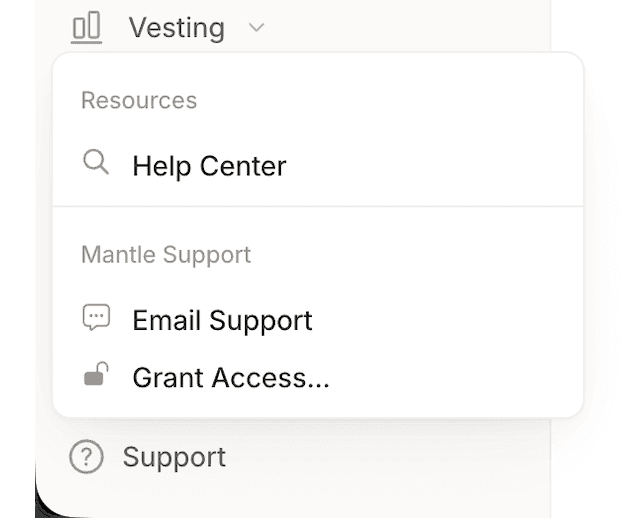
Click Support or VIP Support from the bottom of the left side panel
Click 'Grant Access' to open a dialog box where you can set admin access permissions
Paid accounts:

Starter account:

Uploading documents
Mantle builds your cap table from your actual legal documents. Uploading complete, well-organized materials up front makes your cap table accurate and audit-ready from day one.
Documents to upload
Collect as much of the following as you can before or during upload. You can always upload missing documents later, but the more complete this set is, the smoother your cap table setup will be.
Documents |
|---|
Incorporation Documents
|
Equity Plans and Agreements
|
Governance Documents
|
Capitalization Records
|
Stakeholder Information
|
Upload process
Step 1: Access the Data Room
From your dashboard, click Data Room in the left sidebar.
You'll see the Data Room interface where all uploaded documents are stored.
Step 2: Upload Your Files
Click Upload Files in the top-right corner.
Select files from your computer or drag and drop multiple files.
Step 3: Verify Upload Completion
Review the Data Room to confirm all documents have been uploaded successfully.
Check that you've included all available materials covering your company's complete equity history.
Organize files into folders if needed for clarity.
Step 4: Notify the Mantle Team (paid plan customers only)
Once all documents are uploaded, email support@withmantle.com to let the team know your materials are ready for review.
What happens next (for white-glove onboarding)
For paid plan customers:
The Mantle team begins building your cap table based on uploaded materials.
You'll receive updates or requests if additional information is needed.
Once your cap table is complete, you'll be notified via email.
Typical timelines are about 5-10 business days, depending on the complexity of your equity structure and how complete your documents are.
Manage access roles
Admins control who can see and update equity data. Mantle uses role-based access so you can safely involve finance, HR, law firms, and board members without sharing everything with everyone.
Understanding access levels
Mantle provides three access levels:
Full access:
Can view all company information
Can edit cap table, issue securities, and modify company settings
Can manage other users and their permissions
Ideal for: Founders, CFOs, finance team members
Edit access:
Can view and edit company information with some restrictions
Cannot manage users or modify critical settings
Ideal for: Finance and HR team members
View-only access:
Can view all company information
Cannot make edits or changes
Cannot manage users or permissions
Ideal for: Board members, advisors, investors
Adding company administrators
Add team members who need access to view or manage company information.
Step 1: Navigate to Admin Access
From the dashboard, click Admin Access in the left sidebar.
You'll see the Admin Access page with a list of current administrators.
Step 2: Add a New Admin
Click Add Member in the top-right corner.
The Add Member modal will open.
Step 3: Enter Admin Details
In the modal provide:
Email address
Role/Title
Access level
Step 4: Save the Admin
Review the information for accuracy.
Click Add Member to save.
The new admin will receive an email invitation to access the platform.
Managing existing admins
From the Admin Access page, you can:
View all current administrators and their access levels
Edit admin details by clicking on their name
Remove admin access by clicking the delete icon next to their entry
Collaborating with your law firms
Inviting your legal partners into Mantle keeps your cap table, legal documents, and approvals in sync. Law firm members can view your structure, help with new issuances, and support transactions directly in the platform.
Step 1: Add the lawyer as a user
First, add the individual lawyer to your company workspace. This is a prerequisite so that the "Add Law Firm" button appears in Step 2:
Go to Admin Access in the left sidebar.
Click Add Member in the top-right corner.
Enter the lawyer's email address, first name, and last name.
Select their access level (typically "Full Admin").
Click Add Member to save.
Step 2: Link the user to their law firm
Next, associate the lawyer with their law firm organization:
In Admin Access, click the Law Firms tab
Click Add Law Firm in the top-right corner.
Mantle will try to match the lawyer's email domain to known law firms.
If a match is found, you'll see the firm's name and details.
Click Select to delegate access to the firm's admin.
If Mantle doesn't recognize the law firm, you can still invite the lawyer as an individual admin.
Adding stakeholders
A clean cap table depends on a complete list of stakeholders (founders, employees, contractors, advisors, investors).
Add employees, advisors, and other equity holders to your cap table so they can view their holdings and receive equity communications.
Step 1: Navigate to Stakeholders
From the dashboard, click Stakeholders in the left sidebar.
Step 2: Add a New Stakeholder
Click Add Stakeholder in the top-right corner.
The Add Stakeholder modal will open.
Step 3: Enter Stakeholder Details
In the modal, provide the personal and equity information required.
Step 4: Save the Stakeholder
Review all information for accuracy.
Click Create to save.
The stakeholder will receive an email invitation to access their equity information on Mantle.
Managing stakeholders
From the Stakeholders page, you can:
View all stakeholders and their equity holdings
Edit stakeholder details by clicking on their name
Update vesting schedules and equity information
Mark stakeholders as terminated when they leave the company
Introducing Mantle to Your Team
Because companies have different preferences for stakeholder communications, Mantle does not send automatic email communications to stakeholders who have been added to the Mantle platform. Instead, we invite company admins to send emails directly.